> ## Documentation Index
> Fetch the complete documentation index at: https://densify-sync-changelog-14.mintlify.site/llms.txt
> Use this file to discover all available pages before exploring further.
# Optimizing Microsoft Azure Virtual Machine Instances
This use case includes Microsoft Azure cloud infrastructure data collection, analysis, and generation of right-sizing recommendations for Virtual Machine instances using a combination of Kubex Console and Kubex API operations. The recommendations, which can be downloaded on demand via Kubex API, provide extensive details that can be used to feed downstream automation engines in either JSON or terraform-map formats.
A comprehensive PDF report can be downloaded for each instance to supply supporting evidence for a recommendation; this can be reviewed by a system owner before approvals are given for the suggested changes.
The diagram below provides an overview of the three major processes in Kubex:
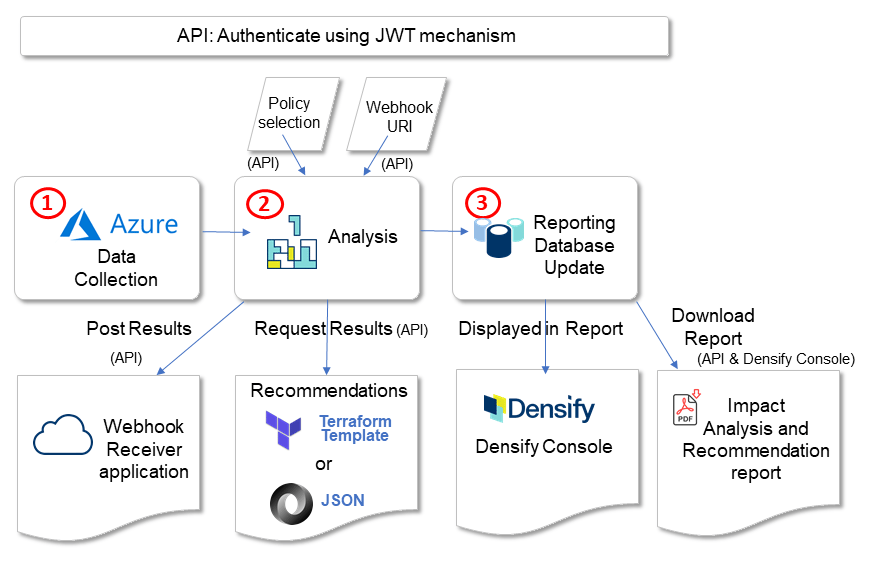 1. **Data Collection**--Collect Azure data into Kubex.
Use the Kubex API or the Kubex Console to initiate this process.
2. **Analysis**--Analyze collected data based on pre-defined policies to make recommendations.
The analysis process is initiated automatically after data collection completes. Results can be immediately pulled from the Kubex API or pushed to a webhook URI once the analysis is complete.
3. **Reporting Database Update**--Update reporting database tables with analysis results for reporting.
The reporting database update process is scheduled to run nightly after the analysis refresh process. The Kubex Console Azure optimization opportunity report and the Impact Analysis and Recommendation reports are available after the reporting database update is complete.
Before you can collect Microsoft Azure cloud infrastructure data in Kubex, you need to create and configure an Azure account with access to your Azure subscriptions. See [Microsoft Azure Data Collection Prerequisites](/docs/WebHelp_Densify_Cloud/Content/Data_Collection_for_Public_Cloud_Systems/Microsoft_Azure_Data_Collection_Prerequisites) or [Microsoft Azure Data Collection Prerequisites for for a Service Principal](/docs/WebHelp_Densify_Cloud/Content/Data_Collection_for_Public_Cloud_Systems/Microsoft_Azure_DataCollection_Prerequisites_for_a_Service_Principal) for details.
The steps below outline a typical workflow to optimize Microsoft Azure Virtual Machine instances:
1. From the Kubex API: [Authenticate using JWT](#_Authorize)--Retrieve token to authenticate each subsequent API call.
2. Collect Azure data through the Kubex API or the Kubex Console. See [Configuring a Microsoft Azure Connection](/docs/WebHelp_Densify_Cloud/Content/Densify_Com/Using_the_Public_Cloud_Connection_Wizard#Azure_Connection) for details.
After data collection completes, an analysis is initiated for each subscription associated with the Azure account configured for data collection.
3. API: [List All Azure Analyses](#_ListAnalysis)--Query for the analysis entity of each subscription for which data was collected (from step 1). You can use the returned analysis entity to check for status and recommendations.
4. API: [Poll for Analysis Status](#_Poll)--Check for data collection and analysis status. The recommendations are available when analysis is complete.
5. API: [Download Results to Apply Recommendations](#_Results)--Retrieve recommendations to implement, manually or forward to your orchestration engine.
Alternatively, you can [Add a Webhook to an Existing Azure Analysis](#_AddWebhook) to push recommendations to an external URI once the next analysis process completes.
6. API/Console (optional): [Download Impact Analysis and Recommendation Instance Report](#_Download) for system owners. This can achieved from the Kubex API or from the Kubex Console. See \[Viewing the Impact Analysis and Recommendation Report]\(/docs/WebHelp\_Densify\_Cloud/Content/Densify\_Com/Viewing the Impact Analysis and Recommendation Report) for details of the report from the Kubex Console.
7. Console (optional alternative): Review Azure Virtual Machine optimization opportunity report from the Kubex Console. See \[Azure]\(/docs/WebHelp\_Densify\_Cloud/Content/Densify\_Com/Optimizing Your Public Cloud#Azure) for details. The optimization opportunity report is available after the nightly reporting database update.
8. Console (optional): Review Azure optimization policy settings used during analysis from the Kubex Console. Contact [support@kubex.ai](mailto:support@kubex.ai) for details.
## Postman Collection
Kubex provides a Postman collection of sample API requests for working with your public cloud environments. See the [Postman Collection](./Postman_Collection).
## Authenticate using JWT
Use the `/authorize` resource to retrieve an authenticated token to make subsequent API calls. See [Authorize](./Authorize) for details. By default, the token expires in 5 minutes, therefore you will need to ensure that you have an active token for each Kubex API request.
Request:
```json POST /authorize theme={null}
{
"userName": "apiUser",
"pwd": "apiPassword"
}
```
Response:
```json theme={null}
{
"apiToken": "eyJhbGciOiJIUzUxMiJ9.eyJqdGkiOiIzNzI2Yzk0NC0wMmE4LTRlYzQtOGE2Ny04ODBmMDM2OTRhZDciLCJpYXQiOjE1NDI2NTI0MDUsInN1YiI6InZhbiIsImlzcyI6IkRlbnNpZnkuY29tIiwiZXhwIjoxNTQyNjUyNzA1fQ.cJd8qFJfRoPnMEU7GzcdYGBT8WwlgmviQ1OQp8P_w9VUcjQA3FJaB9QkqJJ6d7zbrY5yjc4w0rOWjY-PPdbmqw",
"expires" : 1542652705869,
"status" : 200
}
```
Use the `apiToken` value in your Authorization request header for subsequent Kubex API calls.
## Initiate Azure Data Collection and Analysis
The following example shows you how to initiate Azure data collection and analysis, and send the results to a WebHook. See [Analysis Azure Analyze](./Analysis_Azure_Analyze) for details.
Request:
```json POST /analysis/azure/analyze theme={null}
{
"subscriptionId": "cc377154-9605-4cb0-8b41-1b39e1c4ac0f",
"applicationId": "bd6529bf-85d8-410d-a207-ce963b4dd398",
"secretKey": "w6Dvtd5wncPv7aLIXtSkzcIaIU8Y+MLwlcGuoVmFq4c=",
"tenantId": "6c9190a7-bca6-4fcd-b35e-36378aadc695",
"connectionName": "AzureEnvTest",
"webHook": {
"uri": "http://mywebhookserver/webhook/results",
"authType": "basic",
"authValue": "test:testpassword"
}
}
```
Response:
```json theme={null}
{
"href": "Not available",
"message": "Analysis in progress",
"status": 200
}
```
## List All Azure Analyses
To see a list of all Azure analyses currently in Kubex, use the `/analysis/azure` resource. See [List all analyses for a particular platform and vendor](./Analysis_Entity#_getAllAnalyses) for details of the resource operation.
Request:
```
GET /analysis/cloud/azure
```
Response:
```json theme={null}
{
"analysisId": "398d26f3-b705-4fa6-8d31-16724ae320a2",
"analysisName": "00d89cbc-bc00-4d00-bcf6-ce6ec08d8fbc",
"analysisCompletedOn": 1522179715493,
"href": "/analysis/cloud/azure/398d26f3-b705-4fa6-8d31-16724ae320a2",
"analysisResults": "/analysis/cloud/azure/398d26f3-b705-4fa6-8d31-16724ae320a2/results",
"analysisStatus": "/analysis/cloud/azure/398d26f3-b705-4fa6-8d31-16724ae320a2/status"
}
```
## Poll for Analysis Status
Use the `"analysisStatus"` resource element from the [List All Azure Analyses](#_ListAnalysis) response to poll for status of the data collection and analysis. See [Check for analysis status](./Analysis_Status#_getStatus) for details of the resource operation. The analysis is complete and recommendations are available when `"analysisStage": "Completed"`.
Request:
```
GET /analysis/cloud/azure/398d26f3-b705-4fa6-8d31-16724ae320a2/status
```
Response:
```json theme={null}
{
"analysisStage": "Completed",
"webHookStatus": "",
"statusMessage": "Analysis 00d89cbc-bc00-4d00-bcf6-ce6ec08d8fbc was last completed on Mon Feb 25 11:25:11 EST 2019."
}
```
## Add a Webhook to an Existing Azure Analysis
You can add a webhook definition to an existing Azure analysis. The analysis will push the optimized results to the specified webhook URI. See [Add webhook to an analysis](./Analysis_Webhook#_AddWebhook) for details on adding a webhook.
Request:
```json POST /webhook/analysis/cloud/azure/398d26f3-b705-4fa6-8d31-16724ae320a2 theme={null}
{
"uri": "https://myInstanceConfigServer:443/api/densify/results",
"authType": "bearer",
"authValue": "eyJhbGciOiMsIUzUxMiJ9.eyJqdGkiOiJhYWU2MjIxOS1iOWQyLTQ3OGMtYWI3Mi00NGU2OTUzY2RjMDEiLCJpYXQiOjE1NDM2MDgxMTEsInN1YiI6ImFkbWluIiwiaXNzIjoiRGVuc2lmeS5jb20iLCJleHAiOjE1NDM2MDg0MTF9.h3bJrAP-Z2LeqzjN3FYpFDyoaADvYT1MdLw5SuguqkGE7sjB4c7YgQgv3saj15r2IsgTWH8PW7eNnoZwFP9eiQ"
}
```
Response:
```json theme={null}
{
"message": "ok",
"status": 200
}
```
## Download Results to Apply Recommendations
Use the `/analysis/cloud/azure//results` resource to retrieve recommendation results and forward to orchestration engine. See [Analysis: Azure Recommendations](./Analysis_Azure_Results) for details.
Request:
```
GET /analysis/cloud/azure/398d26f3-b705-4fa6-8d31-16724ae320a2/results
```
Headers:
```
Accept: application/terraform-map
Authorization: Bearer
```
## Download Impact Analysis and Recommendation Instance Report
Use the `rptHref` resource element provided in the instance recommendation output to download a PDF Impact Analysis and Recommendation Report for each instance. This report is available after a reporting database update, which is scheduled to run nightly. See [rptHref](./Analysis_Azure_Results#_rptHref) and [Example: Downloading an Impact Analysis and Recommendation Report](./Analysis_Azure_Results#Example_DownloadAppOwner) for details.
Request:
```
GET /systems/bdbdbd19-6928-4e7a-894c-e7e215687a4d/analysis-report
```
Headers:
```
Accept: application/octet-stream
Authorization: Bearer
```
1. **Data Collection**--Collect Azure data into Kubex.
Use the Kubex API or the Kubex Console to initiate this process.
2. **Analysis**--Analyze collected data based on pre-defined policies to make recommendations.
The analysis process is initiated automatically after data collection completes. Results can be immediately pulled from the Kubex API or pushed to a webhook URI once the analysis is complete.
3. **Reporting Database Update**--Update reporting database tables with analysis results for reporting.
The reporting database update process is scheduled to run nightly after the analysis refresh process. The Kubex Console Azure optimization opportunity report and the Impact Analysis and Recommendation reports are available after the reporting database update is complete.
Before you can collect Microsoft Azure cloud infrastructure data in Kubex, you need to create and configure an Azure account with access to your Azure subscriptions. See [Microsoft Azure Data Collection Prerequisites](/docs/WebHelp_Densify_Cloud/Content/Data_Collection_for_Public_Cloud_Systems/Microsoft_Azure_Data_Collection_Prerequisites) or [Microsoft Azure Data Collection Prerequisites for for a Service Principal](/docs/WebHelp_Densify_Cloud/Content/Data_Collection_for_Public_Cloud_Systems/Microsoft_Azure_DataCollection_Prerequisites_for_a_Service_Principal) for details.
The steps below outline a typical workflow to optimize Microsoft Azure Virtual Machine instances:
1. From the Kubex API: [Authenticate using JWT](#_Authorize)--Retrieve token to authenticate each subsequent API call.
2. Collect Azure data through the Kubex API or the Kubex Console. See [Configuring a Microsoft Azure Connection](/docs/WebHelp_Densify_Cloud/Content/Densify_Com/Using_the_Public_Cloud_Connection_Wizard#Azure_Connection) for details.
After data collection completes, an analysis is initiated for each subscription associated with the Azure account configured for data collection.
3. API: [List All Azure Analyses](#_ListAnalysis)--Query for the analysis entity of each subscription for which data was collected (from step 1). You can use the returned analysis entity to check for status and recommendations.
4. API: [Poll for Analysis Status](#_Poll)--Check for data collection and analysis status. The recommendations are available when analysis is complete.
5. API: [Download Results to Apply Recommendations](#_Results)--Retrieve recommendations to implement, manually or forward to your orchestration engine.
Alternatively, you can [Add a Webhook to an Existing Azure Analysis](#_AddWebhook) to push recommendations to an external URI once the next analysis process completes.
6. API/Console (optional): [Download Impact Analysis and Recommendation Instance Report](#_Download) for system owners. This can achieved from the Kubex API or from the Kubex Console. See \[Viewing the Impact Analysis and Recommendation Report]\(/docs/WebHelp\_Densify\_Cloud/Content/Densify\_Com/Viewing the Impact Analysis and Recommendation Report) for details of the report from the Kubex Console.
7. Console (optional alternative): Review Azure Virtual Machine optimization opportunity report from the Kubex Console. See \[Azure]\(/docs/WebHelp\_Densify\_Cloud/Content/Densify\_Com/Optimizing Your Public Cloud#Azure) for details. The optimization opportunity report is available after the nightly reporting database update.
8. Console (optional): Review Azure optimization policy settings used during analysis from the Kubex Console. Contact [support@kubex.ai](mailto:support@kubex.ai) for details.
## Postman Collection
Kubex provides a Postman collection of sample API requests for working with your public cloud environments. See the [Postman Collection](./Postman_Collection).
## Authenticate using JWT
Use the `/authorize` resource to retrieve an authenticated token to make subsequent API calls. See [Authorize](./Authorize) for details. By default, the token expires in 5 minutes, therefore you will need to ensure that you have an active token for each Kubex API request.
Request:
```json POST /authorize theme={null}
{
"userName": "apiUser",
"pwd": "apiPassword"
}
```
Response:
```json theme={null}
{
"apiToken": "eyJhbGciOiJIUzUxMiJ9.eyJqdGkiOiIzNzI2Yzk0NC0wMmE4LTRlYzQtOGE2Ny04ODBmMDM2OTRhZDciLCJpYXQiOjE1NDI2NTI0MDUsInN1YiI6InZhbiIsImlzcyI6IkRlbnNpZnkuY29tIiwiZXhwIjoxNTQyNjUyNzA1fQ.cJd8qFJfRoPnMEU7GzcdYGBT8WwlgmviQ1OQp8P_w9VUcjQA3FJaB9QkqJJ6d7zbrY5yjc4w0rOWjY-PPdbmqw",
"expires" : 1542652705869,
"status" : 200
}
```
Use the `apiToken` value in your Authorization request header for subsequent Kubex API calls.
## Initiate Azure Data Collection and Analysis
The following example shows you how to initiate Azure data collection and analysis, and send the results to a WebHook. See [Analysis Azure Analyze](./Analysis_Azure_Analyze) for details.
Request:
```json POST /analysis/azure/analyze theme={null}
{
"subscriptionId": "cc377154-9605-4cb0-8b41-1b39e1c4ac0f",
"applicationId": "bd6529bf-85d8-410d-a207-ce963b4dd398",
"secretKey": "w6Dvtd5wncPv7aLIXtSkzcIaIU8Y+MLwlcGuoVmFq4c=",
"tenantId": "6c9190a7-bca6-4fcd-b35e-36378aadc695",
"connectionName": "AzureEnvTest",
"webHook": {
"uri": "http://mywebhookserver/webhook/results",
"authType": "basic",
"authValue": "test:testpassword"
}
}
```
Response:
```json theme={null}
{
"href": "Not available",
"message": "Analysis in progress",
"status": 200
}
```
## List All Azure Analyses
To see a list of all Azure analyses currently in Kubex, use the `/analysis/azure` resource. See [List all analyses for a particular platform and vendor](./Analysis_Entity#_getAllAnalyses) for details of the resource operation.
Request:
```
GET /analysis/cloud/azure
```
Response:
```json theme={null}
{
"analysisId": "398d26f3-b705-4fa6-8d31-16724ae320a2",
"analysisName": "00d89cbc-bc00-4d00-bcf6-ce6ec08d8fbc",
"analysisCompletedOn": 1522179715493,
"href": "/analysis/cloud/azure/398d26f3-b705-4fa6-8d31-16724ae320a2",
"analysisResults": "/analysis/cloud/azure/398d26f3-b705-4fa6-8d31-16724ae320a2/results",
"analysisStatus": "/analysis/cloud/azure/398d26f3-b705-4fa6-8d31-16724ae320a2/status"
}
```
## Poll for Analysis Status
Use the `"analysisStatus"` resource element from the [List All Azure Analyses](#_ListAnalysis) response to poll for status of the data collection and analysis. See [Check for analysis status](./Analysis_Status#_getStatus) for details of the resource operation. The analysis is complete and recommendations are available when `"analysisStage": "Completed"`.
Request:
```
GET /analysis/cloud/azure/398d26f3-b705-4fa6-8d31-16724ae320a2/status
```
Response:
```json theme={null}
{
"analysisStage": "Completed",
"webHookStatus": "",
"statusMessage": "Analysis 00d89cbc-bc00-4d00-bcf6-ce6ec08d8fbc was last completed on Mon Feb 25 11:25:11 EST 2019."
}
```
## Add a Webhook to an Existing Azure Analysis
You can add a webhook definition to an existing Azure analysis. The analysis will push the optimized results to the specified webhook URI. See [Add webhook to an analysis](./Analysis_Webhook#_AddWebhook) for details on adding a webhook.
Request:
```json POST /webhook/analysis/cloud/azure/398d26f3-b705-4fa6-8d31-16724ae320a2 theme={null}
{
"uri": "https://myInstanceConfigServer:443/api/densify/results",
"authType": "bearer",
"authValue": "eyJhbGciOiMsIUzUxMiJ9.eyJqdGkiOiJhYWU2MjIxOS1iOWQyLTQ3OGMtYWI3Mi00NGU2OTUzY2RjMDEiLCJpYXQiOjE1NDM2MDgxMTEsInN1YiI6ImFkbWluIiwiaXNzIjoiRGVuc2lmeS5jb20iLCJleHAiOjE1NDM2MDg0MTF9.h3bJrAP-Z2LeqzjN3FYpFDyoaADvYT1MdLw5SuguqkGE7sjB4c7YgQgv3saj15r2IsgTWH8PW7eNnoZwFP9eiQ"
}
```
Response:
```json theme={null}
{
"message": "ok",
"status": 200
}
```
## Download Results to Apply Recommendations
Use the `/analysis/cloud/azure//results` resource to retrieve recommendation results and forward to orchestration engine. See [Analysis: Azure Recommendations](./Analysis_Azure_Results) for details.
Request:
```
GET /analysis/cloud/azure/398d26f3-b705-4fa6-8d31-16724ae320a2/results
```
Headers:
```
Accept: application/terraform-map
Authorization: Bearer
```
## Download Impact Analysis and Recommendation Instance Report
Use the `rptHref` resource element provided in the instance recommendation output to download a PDF Impact Analysis and Recommendation Report for each instance. This report is available after a reporting database update, which is scheduled to run nightly. See [rptHref](./Analysis_Azure_Results#_rptHref) and [Example: Downloading an Impact Analysis and Recommendation Report](./Analysis_Azure_Results#Example_DownloadAppOwner) for details.
Request:
```
GET /systems/bdbdbd19-6928-4e7a-894c-e7e215687a4d/analysis-report
```
Headers:
```
Accept: application/octet-stream
Authorization: Bearer
```